Fix: “Apple Intelligence Is Not Available in Your Country or Region” on iPhone
If an iPhone shows “Apple Intelligence is not available in your country or region”, the warning is not always about your actual country anymore. Apple Intelligence is now available in most regions on compatible iPhones, so the message often appears because the phone, language setup, storage, or Apple Account conditions do not meet Apple’s current requirements.
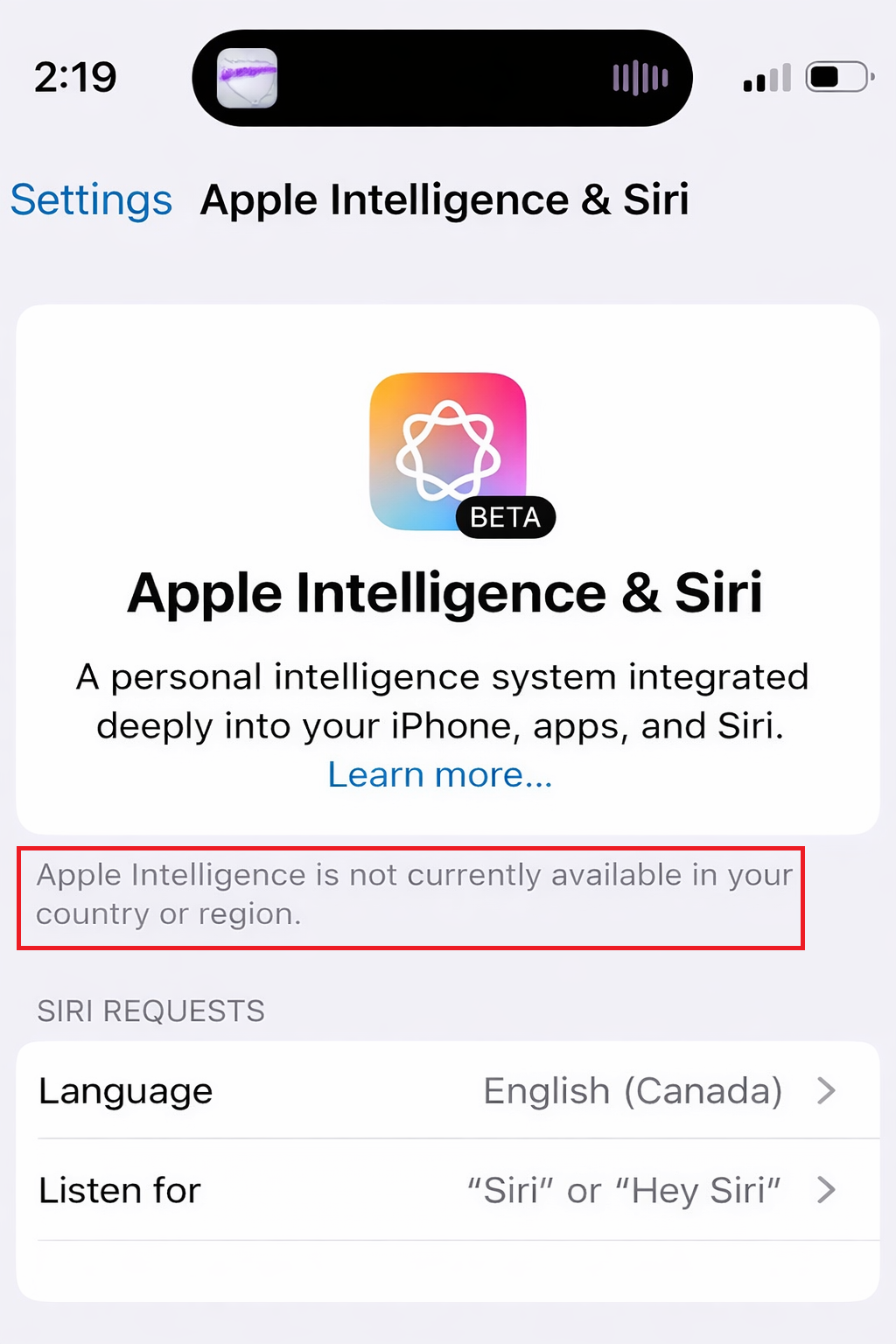
This is why old advice about switching everything to the United States can be misleading. That workaround belonged to the earlier rollout period. On current iOS versions, a supported iPhone in a supported language should not need a fake region setting unless it is affected by Apple’s remaining China mainland rules.
1. Confirm the iPhone Model, iOS Version, Storage, and Model Download
Apple Intelligence is limited to newer iPhones. On iPhone, Apple lists support for iPhone 15 Pro, iPhone 15 Pro Max, and iPhone 16 models or later. The phone also needs iOS 18.1 or later, enough free storage for the local models, and Apple Intelligence enabled in Settings.
- Confirm that the iPhone is an iPhone 15 Pro, iPhone 15 Pro Max, or any iPhone 16 or later.
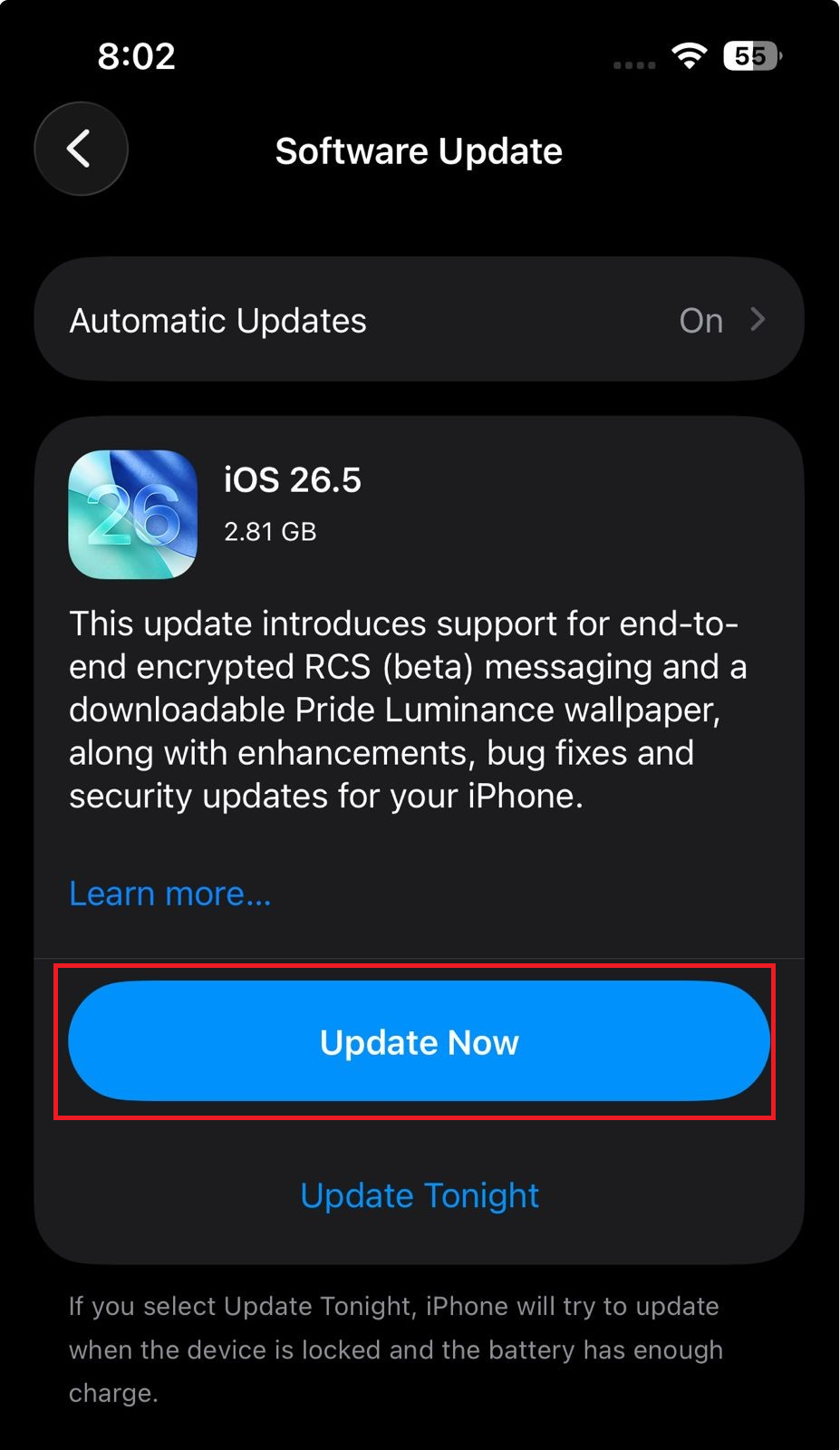
- Go to Settings > General > Software Update and install the latest iOS version available for the phone.
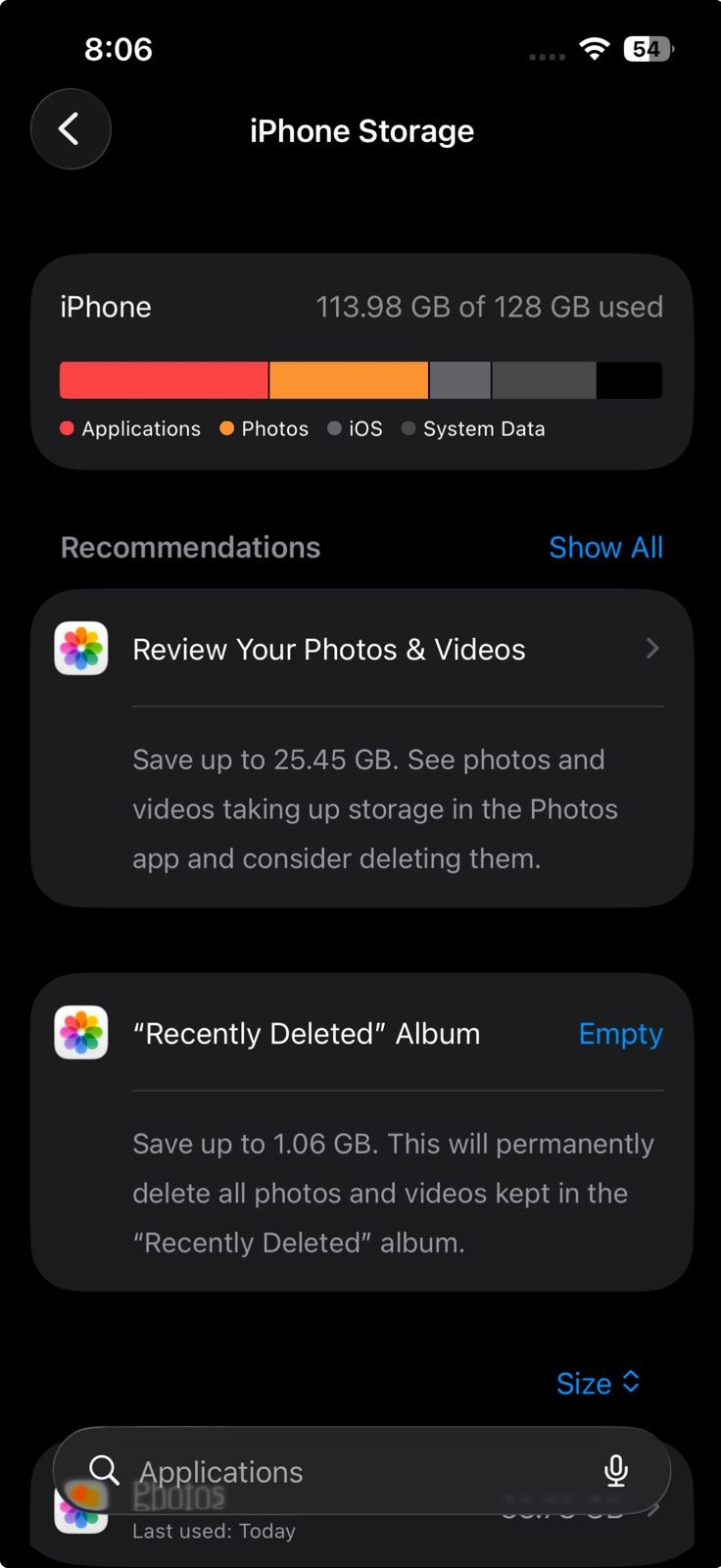
- Open Settings > General > iPhone Storage and free up space if the phone is close to full.
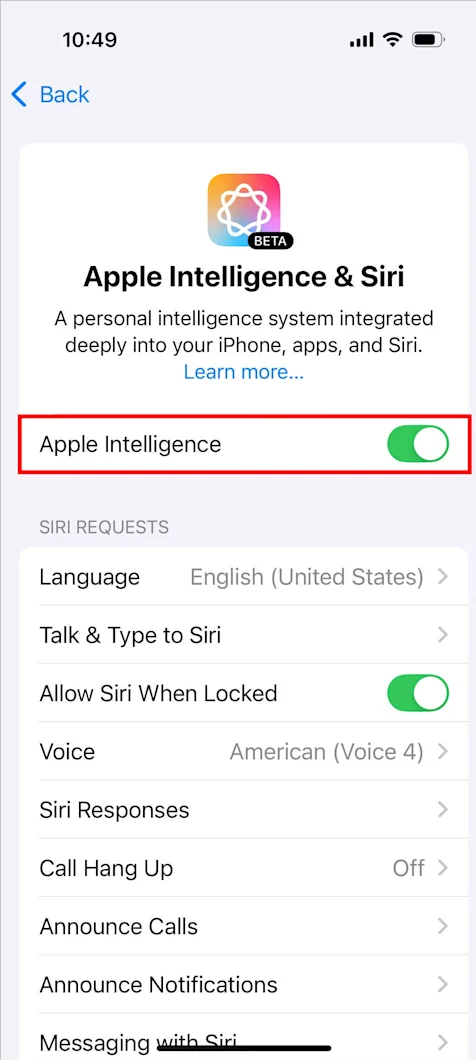
- Open Settings > Apple Intelligence & Siri and make sure Apple Intelligence is turned on.
- Keep the iPhone connected to Wi-Fi and power while the on-device Apple Intelligence models download.
If the iPhone model is unsupported, the country warning is not the real fix path. If the model and update are correct, match the language settings next.
2. Match the iPhone Language and Siri Language
Apple’s setup rules require the device language and Siri language to be the same supported language. If the iPhone language and Siri language are different, Apple Intelligence can stay unavailable even when the country or region is supported.
- Go to Settings > General > Language & Region.
- Set the iPhone to a supported Apple Intelligence language, such as English, French, German, Italian, Portuguese, Spanish, Chinese, Japanese, Korean, Vietnamese, or another currently supported language.
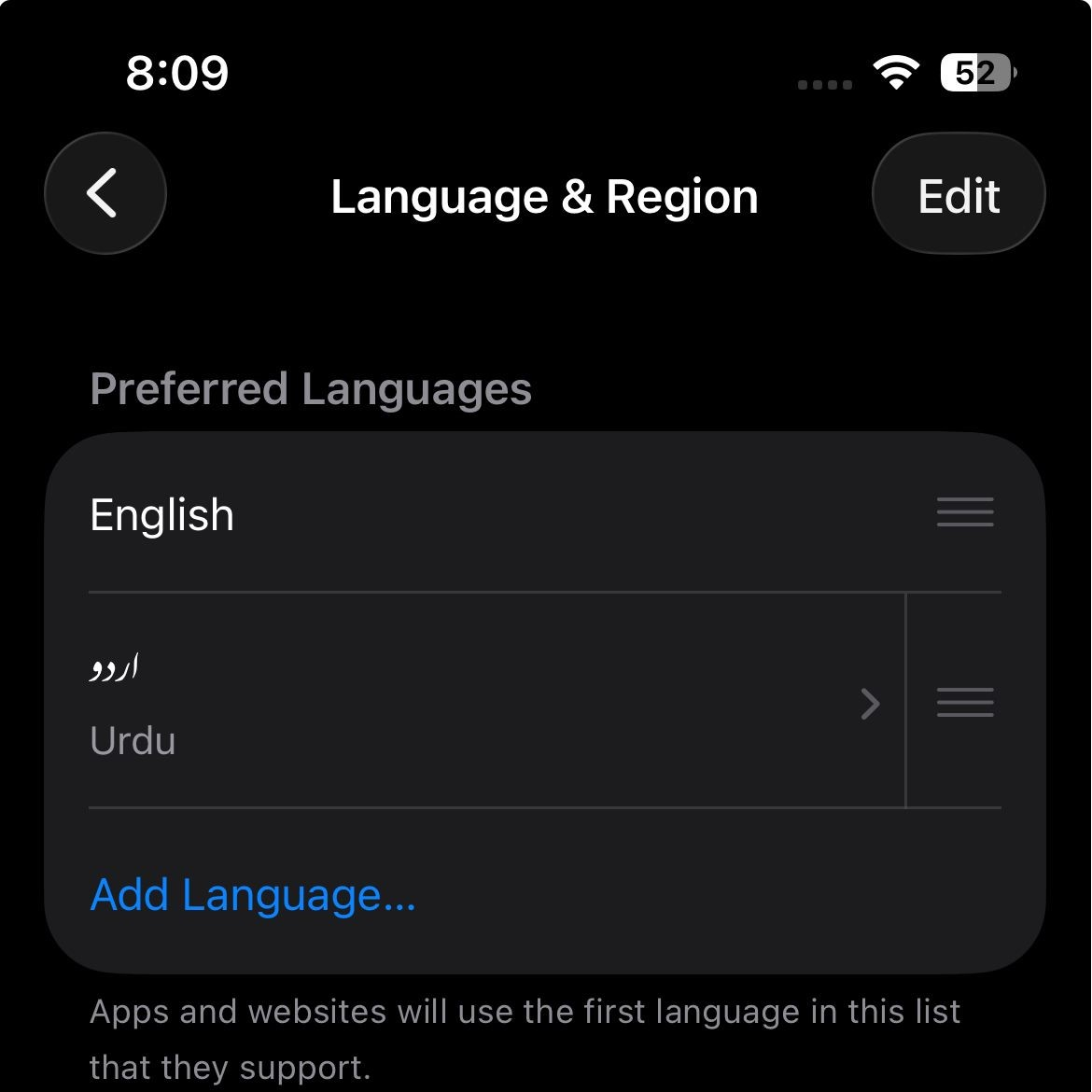
Apple Intelligence needs the iPhone language and Siri language to match in a supported language. - Go to Settings > Apple Intelligence & Siri.
- Set Siri Language to the same language as the iPhone language.
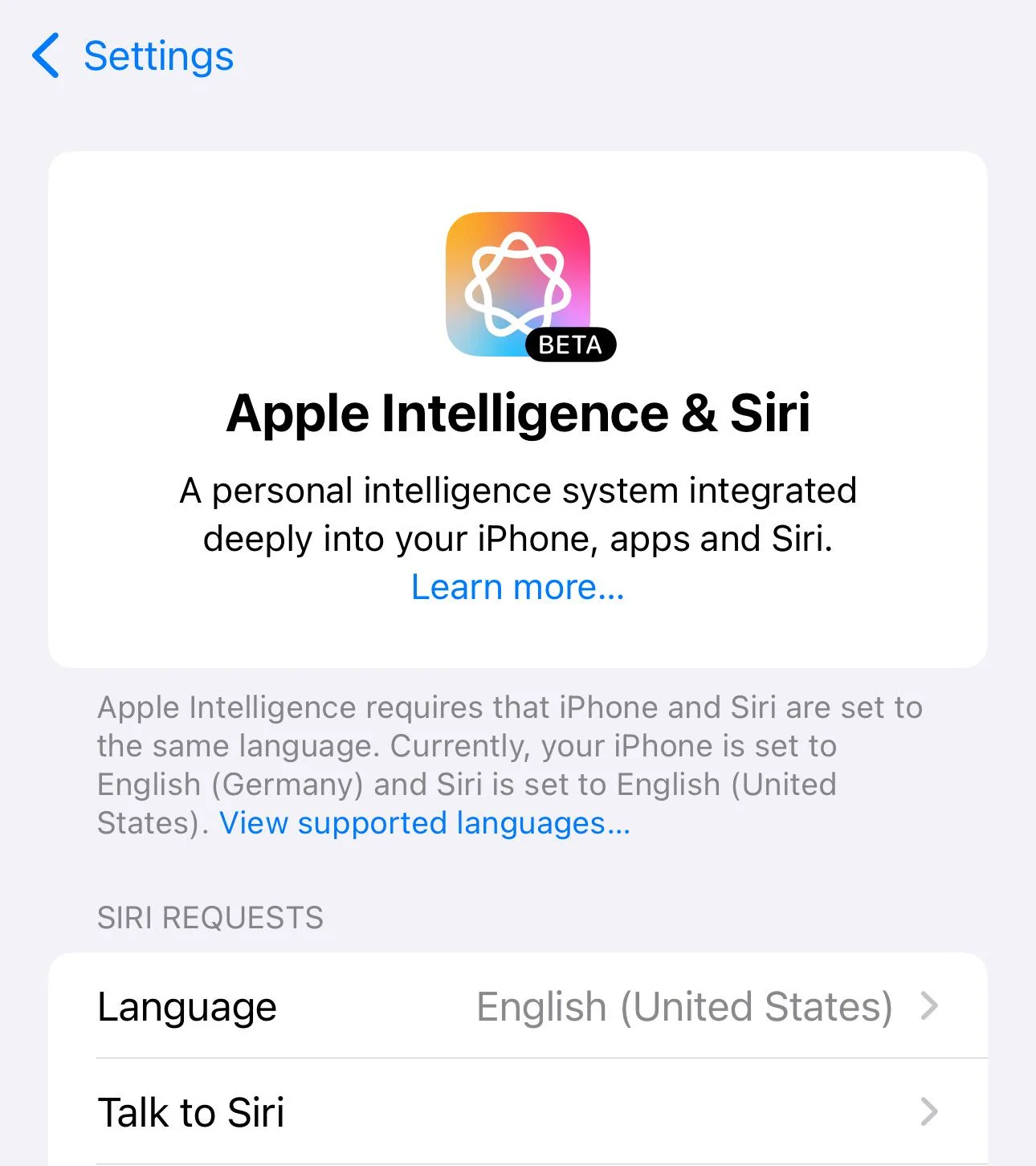
If the phone uses an unsupported or mismatched language, the country or region message can be misleading. - If you recently changed Siri language, wait for the new Siri language to finish downloading, then check Apple Intelligence again.
If Apple Intelligence appears after the language match, the phone was not blocked by country. If the warning still mentions country or region, check the remaining region rules.
3. Check the Current Region Rules Instead of Using Old US-Only Workarounds
Apple Intelligence is no longer limited the way it was during the early rollout. Apple now says compatible iPhone models can use Apple Intelligence in most regions when the language and software requirements are met.
The main region exception still called out by Apple is China mainland. That rule is stricter than simply changing the region in Settings.
- If you live in the EU or another broadly supported region, undo old region workarounds before testing again.
- Go to Settings > General > Language & Region and set the iPhone to your real current region if you previously changed it only for Apple Intelligence.
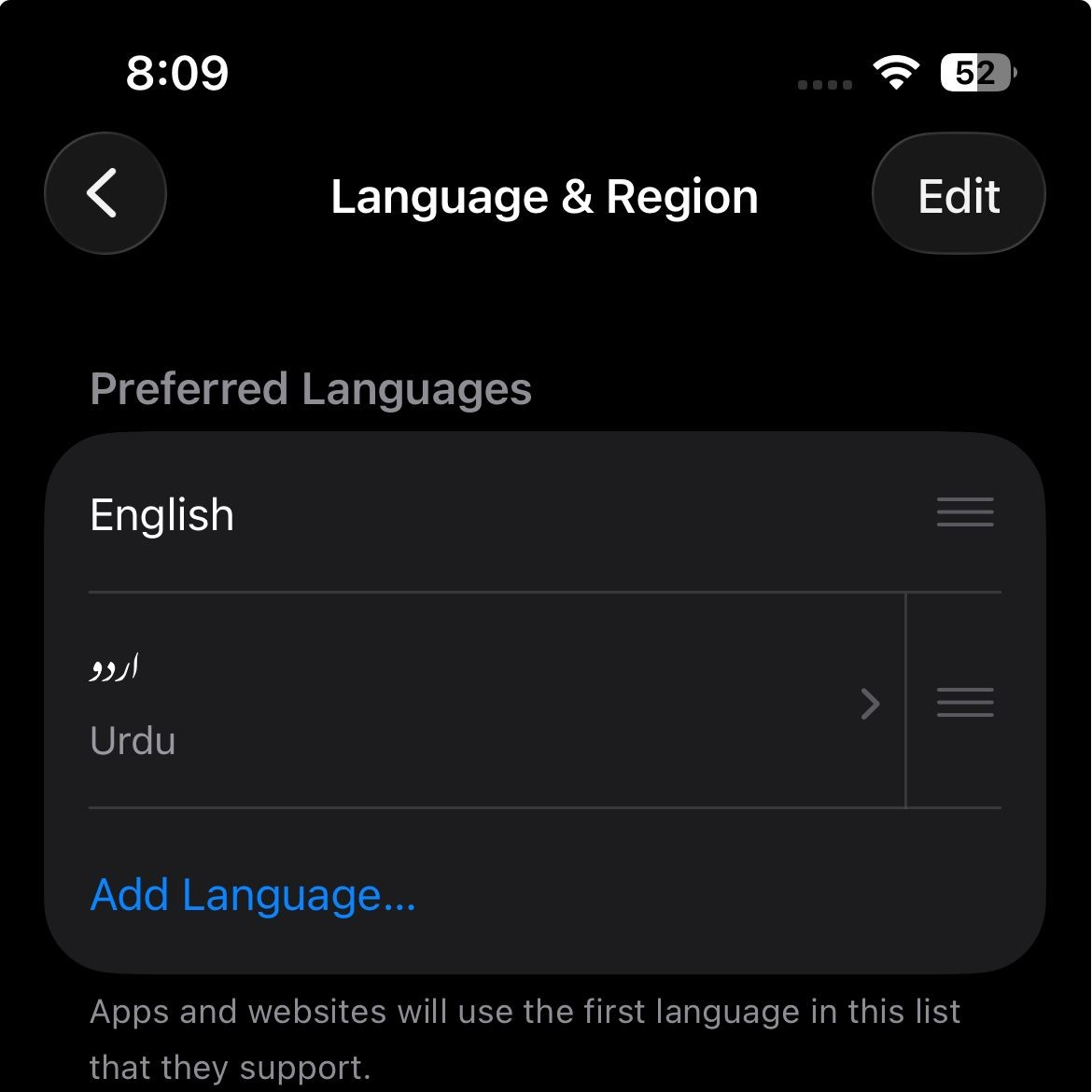
On current iOS versions, supported regions usually do not need the old US-region workaround. - If the iPhone was purchased in China mainland, treat that as a separate Apple Intelligence availability block under Apple’s current rules.
- If the iPhone was purchased outside China mainland but you are currently in China mainland, check whether your Apple Account Country or Region is also set to China mainland.
- If both your physical location and Apple Account region are China mainland, ordinary language or device-region changes will not clear the limitation.
If the phone falls under Apple’s China mainland rule, there is no normal Settings workaround for it right now. If it does not, refresh the local Siri and Apple Intelligence setup.
4. Restart, Disable VPN Temporarily, and Let Siri Settings Load Correctly
A supported iPhone can still show a stuck or incomplete Apple Intelligence page after an update, restore, or language change. Apple also notes that some VPN profiles can interfere when Apple Intelligence & Siri or Siri settings do not appear correctly after a restart.
- Restart the iPhone.
- Open Settings > Apple Intelligence & Siri again.
- If you use a VPN, turn it off temporarily and check the settings page again.
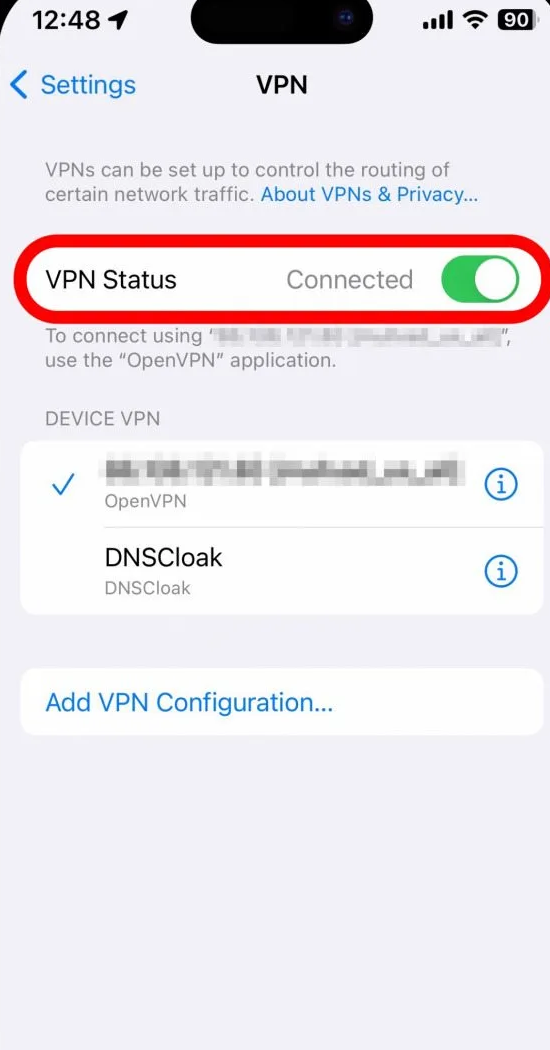
If the Apple Intelligence and Siri page does not load correctly after restart, test once without VPN enabled. - Make sure Siri is enabled in the same settings area.
- Keep the phone on Wi-Fi and power if Apple Intelligence setup still appears to be downloading or preparing.
If the message clears after restart, VPN removal, or model download, the issue was local setup state. If it survives all of the checks above, be careful with Apple Account region changes.
5. Change Apple Account Region Only if It Is Actually Wrong
Changing your Apple Account Country or Region is not a harmless Apple Intelligence toggle. Apple requires you to deal with account balance, subscriptions, payment methods, pending purchases, rentals, and regional content availability before changing it.
- Do not keep switching Apple Account Country or Region just to force Apple Intelligence.
- If you actually moved countries and the Apple Account region is wrong, review Apple’s region-change requirements first.
- Spend any remaining Apple Account balance, cancel blocking subscriptions, wait for pending purchases or refunds to finish, and make sure you have a valid payment method for the new country.
- After changing the account region legitimately, restart the iPhone and check Settings > Apple Intelligence & Siri again.
If the iPhone is supported, updated, using matching supported languages, outside Apple’s China mainland restrictions, and still shows the region warning, send the clean case to Apple.
6. Contact Apple with the Exact Availability Details
At this point, Apple Support will have a much clearer case than “Apple Intelligence says region not available.” The useful details are the ones that separate unsupported hardware, mismatched language, China mainland rules, and a stuck local setup.
- Open the Apple Support app or go to support.apple.com/contact.
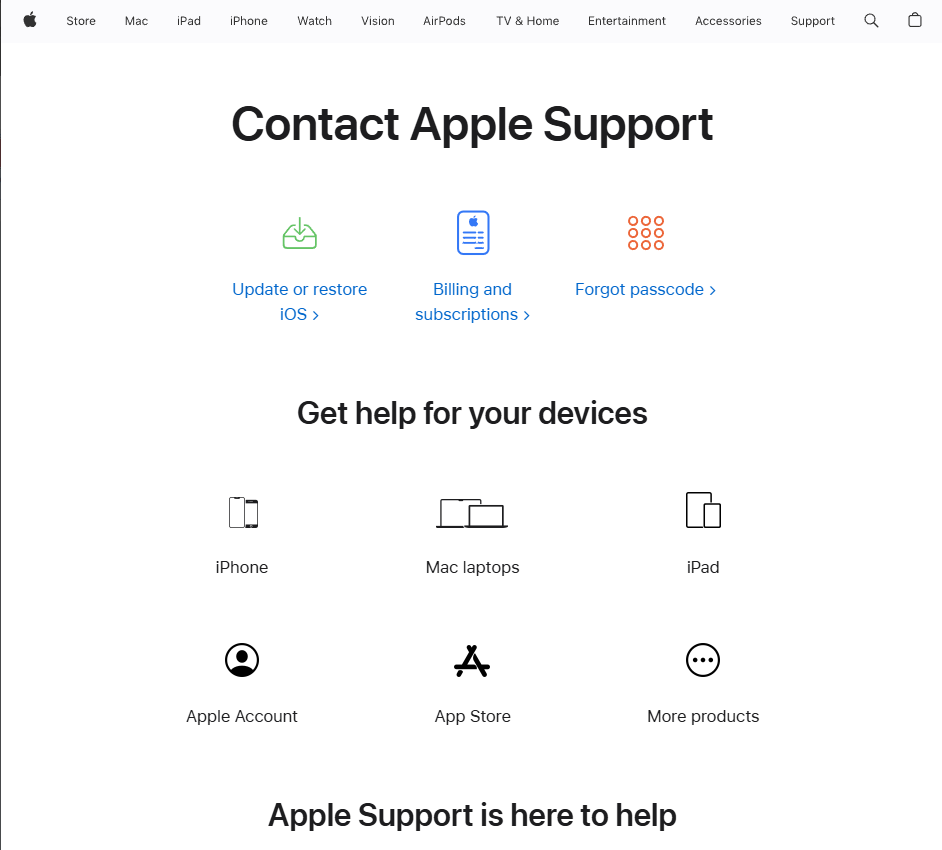
Once the basic requirements are clean, Apple Support can check the account and device-side availability state directly. - Include your exact iPhone model, iOS version, device language, Siri language, physical country, and Apple Account Country or Region.
- Also mention whether the iPhone was purchased in China mainland.
The country or region warning is easy to overread. On current iOS builds, the fix is usually not to fake a different country; it is to meet Apple’s device, storage, language, and model-download requirements, then rule out the still-active China mainland limitation.